You do not need a full video editor to cut a long intro, remove dead time, or save one useful clip. A browser-based trimmer handles those jobs without an installation or account.
The free AI Speedup Video Trimmer lets you choose one or more sections, preview them, and export the result as MP4 or WebM. The processing runs in your browser, so your video stays on your device.
How to trim a video online
1. Open the video trimmer
Go to the online video trimmer. Wait a few seconds while the editor loads, then drag your video into the upload area or click it to choose a file.
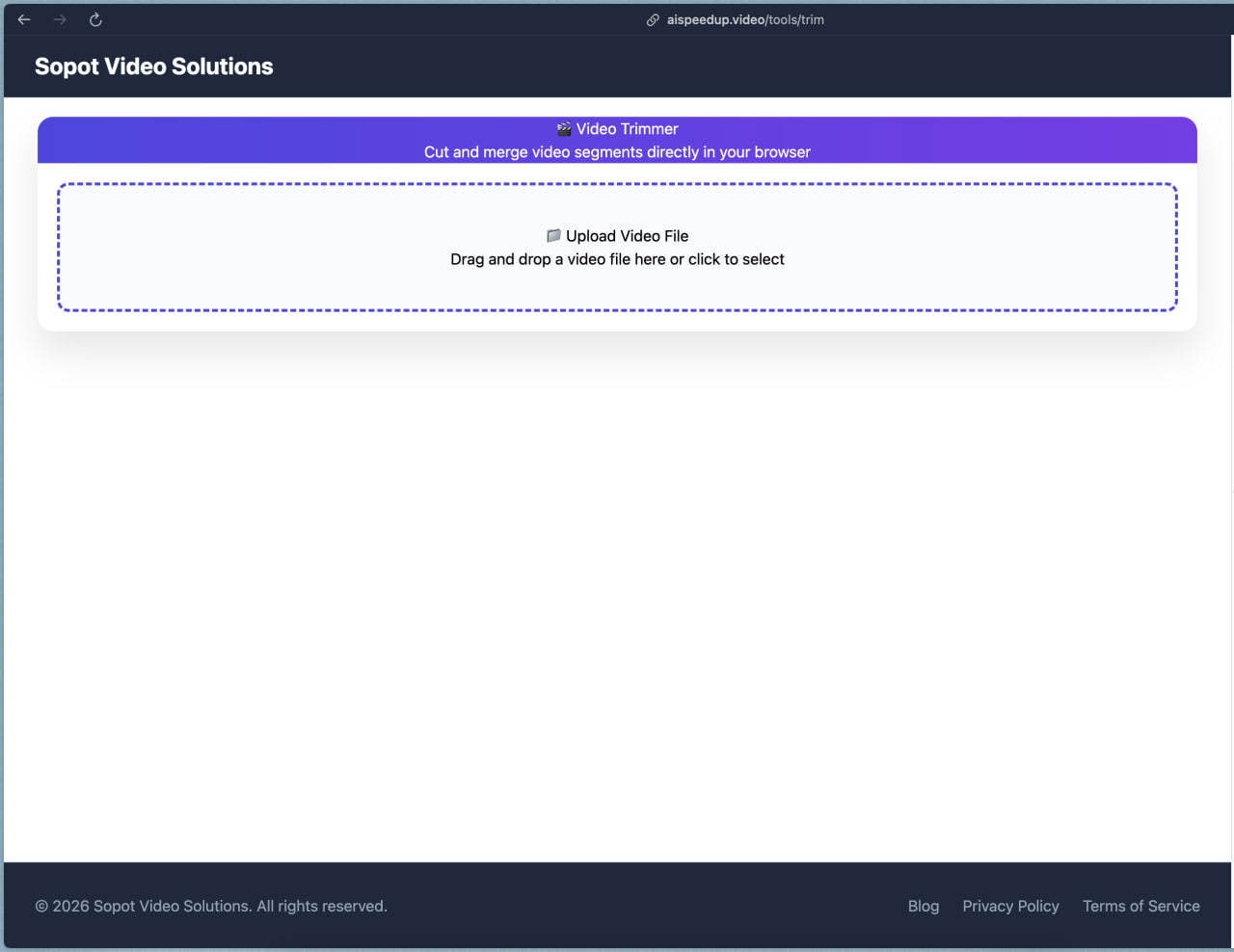
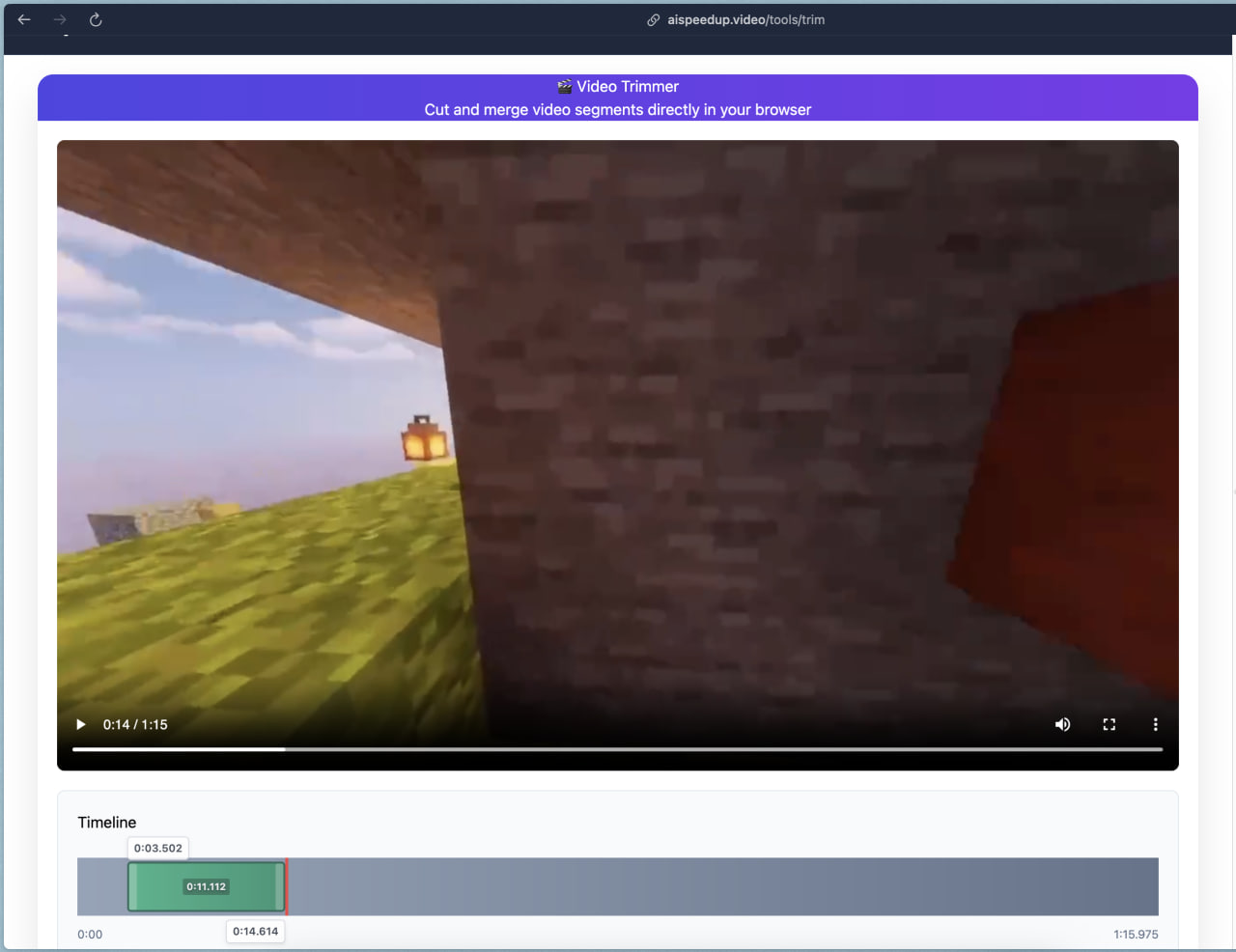
Once the file opens, the page shows a video preview and a timeline. Play the video to find the section you want to keep.
2. Set the start and end times
Drag across the timeline to mark the beginning and end of your clip. You can also type exact timestamps into the start and end fields when you need a more precise cut.
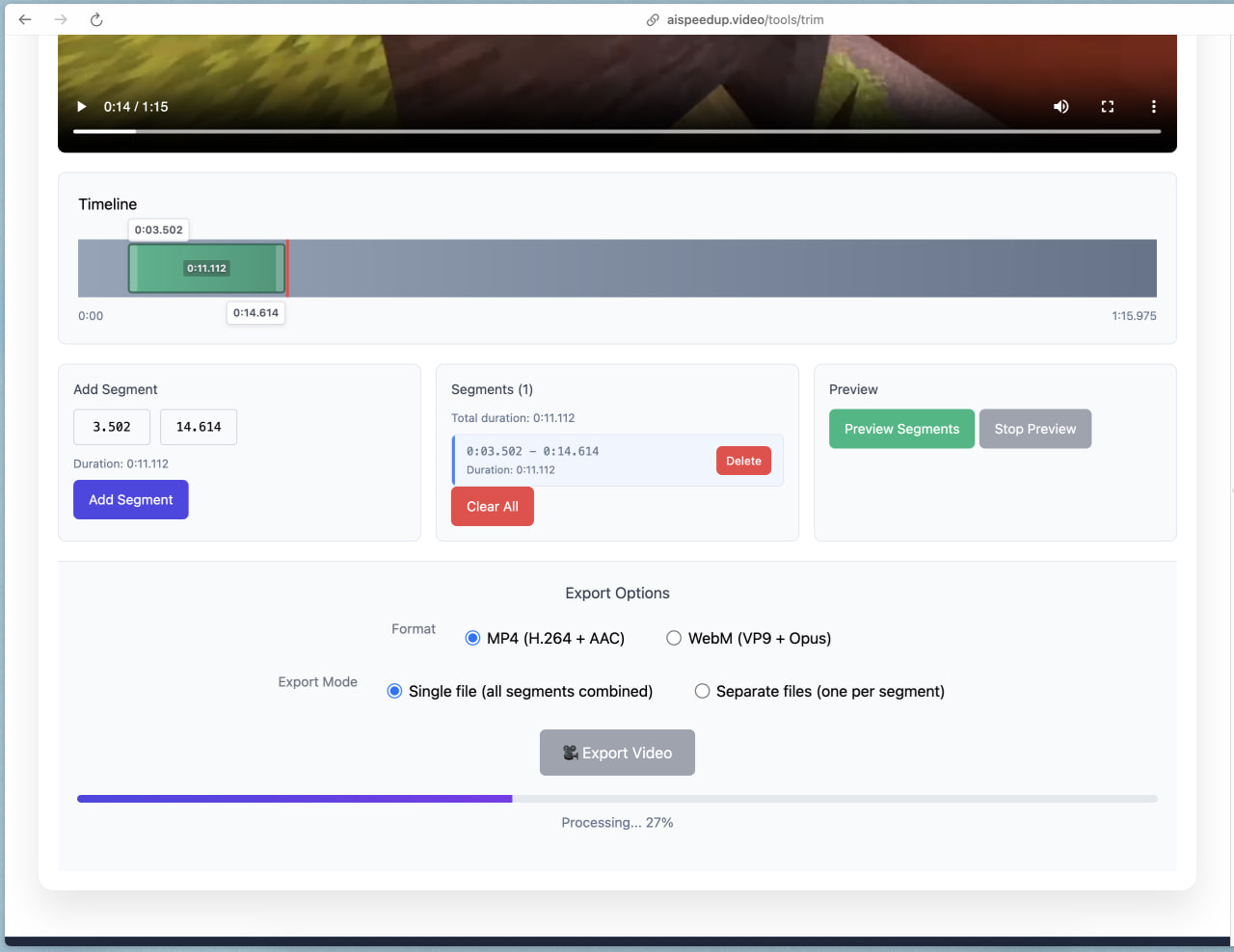
Click Add Segment to save the selection. The selected section appears in the segments list below the timeline.
3. Add any other clips you want to keep
You can keep more than one part of the same video. Select another time range and click Add Segment again. The editor can combine the saved segments into one video or export each segment as a separate file.
Use Preview Segments before exporting. This catches an awkward start, a clipped word, or a few seconds of footage you meant to remove.
4. Choose an export format
Select one of the available formats:
- MP4 (H.264 + AAC) works well for general sharing and playback.
- WebM (VP9 + Opus) is useful for web video and browsers.
Choose Single file to join every saved segment in order. Choose Separate files if you want one download for each segment.
5. Export and download the trimmed video
Click Export Video and leave the tab open while the browser processes the file. Larger or longer videos will take more time. When processing finishes, preview the result and download it to your device.
What does trimming a video change?
Trimming changes the video’s duration. It removes footage before or after the part you keep. When you select several segments, it can also remove unwanted footage from the middle and join the remaining parts.
Cropping is different. Cropping removes part of the visible frame, such as an empty border or an object near the edge. If your goal is to shorten the running time, use a trimmer.
How to get a clean cut
Play a few seconds before and after each cut before you export. For speech, leave a small gap around each sentence so the first or last word does not sound clipped. For music, moving the cut to a natural beat usually sounds better than stopping in the middle of a note.
If you are combining several segments, add them in the order you want them to appear. Preview the complete selection once before downloading it.
Does trimming reduce video file size?
Usually. A shorter video contains less footage, so its exported file will often be smaller. The final size also depends on the resolution, format, video content, and encoding settings.
Trimming is a good first step when a video contains footage you do not need. If you must hit a strict upload limit, you may also need to compress the finished clip.
Can I trim a video on a phone?
Yes. Open the trimmer in your mobile browser, choose a video from your device, set the time range, and export it. Keep the browser tab active during processing, especially for a large file.
On supported phones, the finished video can be shared to another app or saved through the browser’s download controls.
Can I cut a section from the middle?
Yes. Add the section before the unwanted footage as one segment, then add the section after it as another. Export both segments as a single file to join them without the middle section.
Start trimming
Open the free online video trimmer, select the footage you want to keep, preview the cut, and export the finished video.